
Short answer: install Meta Ads Data Advisor (the new name of Meta Pixel Helper) from the Chrome Web Store, open your website, accept the cookie banner, and click the extension icon. A side panel shows A Pixel was found on this page with your pixel ID. Click the pixel to see each event (PageView, Lead, Purchase…) and its parameters. "No Pixels found" usually means the cookie banner has not been accepted yet, an ad blocker is on, or the pixel is not installed on that page.
Pixel Helper has a new name
If you search the Chrome Web Store for Meta Pixel Helper, you will land on Meta Ads Data Advisor. It is the same extension with the same ID, published by Meta, and existing installs were updated automatically. Meta's documentation describes it as "formerly Meta Pixel Helper".

What changed for you:
- It opens in Chrome's side panel instead of a small popup.
- The old checks still work without logging in. Logging in with Facebook adds setup flows: connecting Pixel and Conversions API through Google Tag Manager, Shopify or WooCommerce, CRM connections and catalogs.
- It asks for broader permissions than before, including reading and changing data on all websites, because the setup flows act on other sites for you. If you only want to check pixels, you can use it logged out.
- It works in Chrome and Microsoft Edge.
How to install it
- Open the Meta Ads Data Advisor page in the Chrome Web Store.
- Click Add to Chrome, read the permissions and click Add extension.
- Click the puzzle icon in the toolbar and pin the extension, so you can see the event counter on its icon while you browse.
Had the old Pixel Helper and it shows as turned off? Go to chrome://extensions/, find Meta Ads Data Advisor, switch it on and accept the new permissions. Reload any open pages afterwards.
How to check if your pixel works
- Turn off your ad blocker for your own site. Ad blockers stop the pixel, and the extension then shows nothing.
- Open your website in a normal window.
- Click the extension icon. A small badge on the icon with a dot or a number means events fired on this page. No badge means no pixel.
Here is the most common surprise. This is fortunitus.lt opened fresh, before the cookie banner was answered:
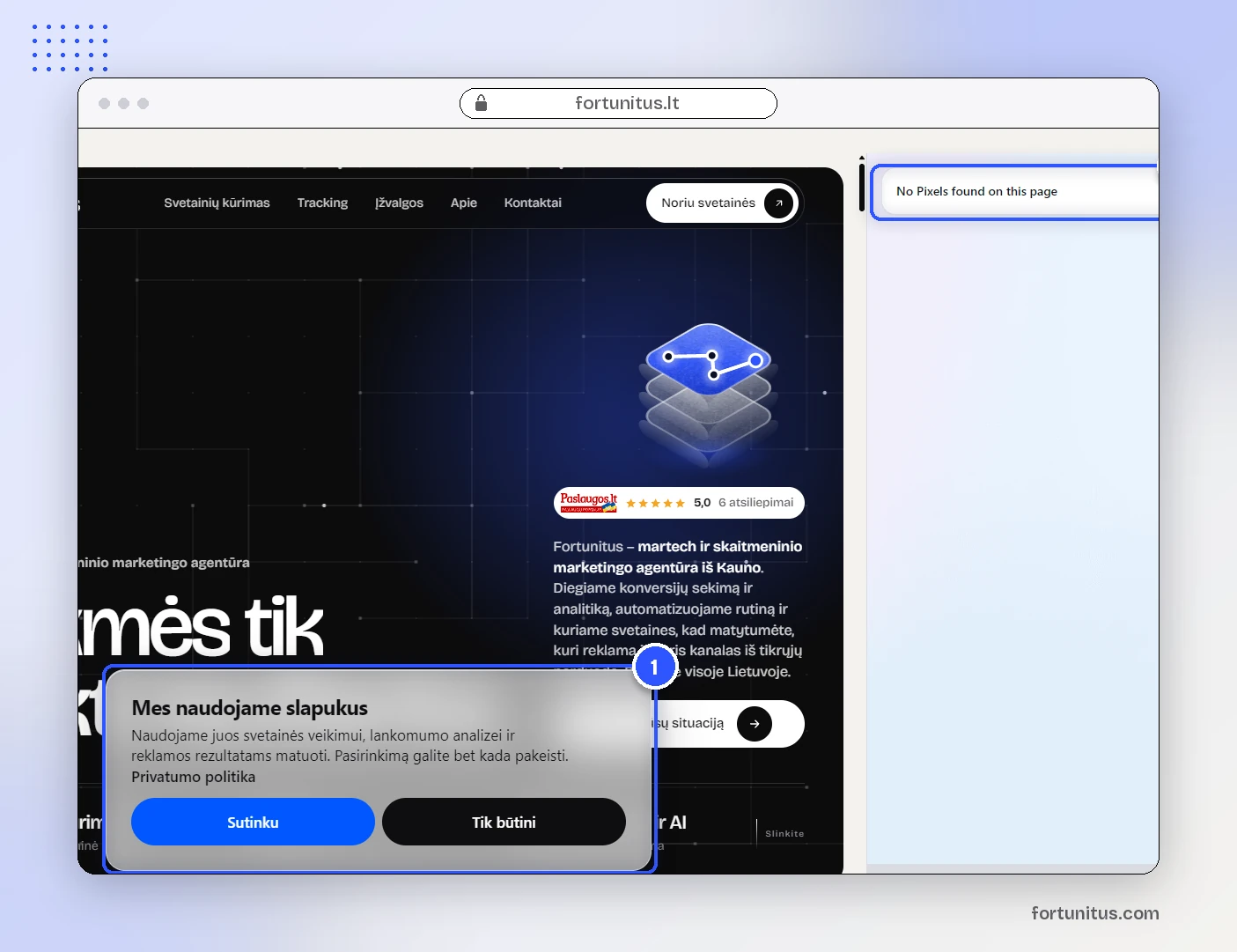
Nothing is broken. On this site the Meta Pixel loads only after the visitor agrees to marketing cookies, which is how it should work under EU privacy rules. After clicking the accept button, the same page shows the pixel:

Check that the ID shown is your own pixel ID (you find it in Meta Events Manager). If you see two different IDs, someone added a second pixel, often an old one from a previous agency or a plugin.
How to read the events
Click the pixel to open the list of events fired on this page. Click an event to see its details:

- Event name. Standard events (PageView, ViewContent, AddToCart, InitiateCheckout, Purchase, Lead, Contact…) are the ones Meta's ad system understands best. Anything else, like the
Engaged10sevents above, is a custom event. That is fine when intended, but a typo such aspurchaseorSignup_Forminstead ofCompleteRegistrationmeans Meta will not treat it as the standard event. - Custom parameters. For Purchase, check
valueandcurrency. On the right side of the screenshot the value is49,90with a comma, sent as text. Meta expects a number such as49.90, so this purchase may arrive without a usable value. The extension still showed the event as Active, so this is something you must check with your own eyes. - Setup method. Manual means code on the site or in Google Tag Manager sends the event. Auto-detected means Meta guessed the event from page activity, without code.
- Pixel code and URL called. Click Show to see the exact call. This is the fastest way to send a developer precise information about a wrong event.
To follow a whole path (product page, cart, checkout, thank-you page), use Show all events in the panel. It keeps a log across pages in your browsing session.
What the statuses mean
| Status | For a pixel | For an event |
|---|---|---|
| Active | The pixel works | The event was sent correctly |
| Warning | The pixel is not set up correctly | Something may hurt performance, for example a missing parameter |
| Inactive | The pixel is not sending events correctly | The event is not sending data |
| Error | Not used for the pixel itself | A critical problem: blocked parameters, duplicate events or a compliance issue |
| Auto-detected | Not used for the pixel itself | Meta found the event automatically, without code |
A pixel can be Active while one of its events has a warning, so always open the pixel and look at each event.
Common problems and what to do
| What you see | Likely cause | What to do |
|---|---|---|
| No Pixels found on this page | Cookie banner not accepted, ad blocker on, or no pixel on this page | Accept marketing cookies, turn off the ad blocker, reload. If still nothing, the pixel is not installed on that page. |
| Two pixel IDs | An old or second pixel added by a plugin, theme or another tag | Keep the one connected to your ad account in Events Manager, remove the other at its source. |
| The same event twice per action | The pixel is installed twice, for example in the theme and in Google Tag Manager | Remove one installation. Duplicate code is the first item on Meta's troubleshooting list. |
| Purchase or Lead missing after the action | The event fires on a page you did not reach, or a form submits without reloading | Use Show all events, then check Test events in Events Manager. Button clicks are not always visible in the extension. |
| Value is empty or has a comma | The website passes the price in the wrong format | Send a plain number with a dot and a currency code, for example value: 49.90, currency: 'EUR'. |
| Wrong or unknown event name | A typo or a custom name instead of a standard event | Rename it to the matching standard event in your code or GTM tag. |
What the extension does not show
It only sees what happens in your browser. It does not show:
- Conversions API events sent from a server. Check those in Events Manager under Test events and in the event overview.
- Custom conversions and some advanced event types, which Meta notes may not appear in the extension even when they work.
- Whether Meta accepted the event. For that, Events Manager is the source of truth. A good routine: check in the extension, then confirm the same event appears in Test events within a minute.
If you want to see every tag a site loads at once (Meta Pixel, GA4, Google Tag Manager, Google Ads and the cookie banner), run it through the free website tracking checker. For Google tags, the equivalent tool is Google Tag Assistant.
The free tracking checker shows which GA4, GTM, Google Ads, Meta and cookie banner tags your site loads and what is inside your GTM container.
Run the checker