
Short answer: the data layer is a JavaScript array called window.dataLayer. The website adds messages to it with dataLayer.push(), for example {event: 'purchase', ecommerce: {value: 24.90, currency: 'EUR', …}}. In Google Tag Manager, a Custom Event trigger reacts to the event name, Data Layer Variables read the values, and a tag sends them to GA4 or an ad platform. The website owns the data, Tag Manager only reads it.
Why the data layer exists
Tag Manager can read things it sees on the page, such as the page address or a clicked button. It cannot reliably read things only your website knows: the order number, the order value, which products were bought, whether the visitor is logged in. Scraping those from the page text breaks as soon as someone changes the design.
The data layer solves this. The website writes the facts into one agreed place, in an agreed format, and every tag reads from there. Google describes it as an object used by Google Tag Manager and gtag.js to pass information to tags.
How a purchase travels, step by step

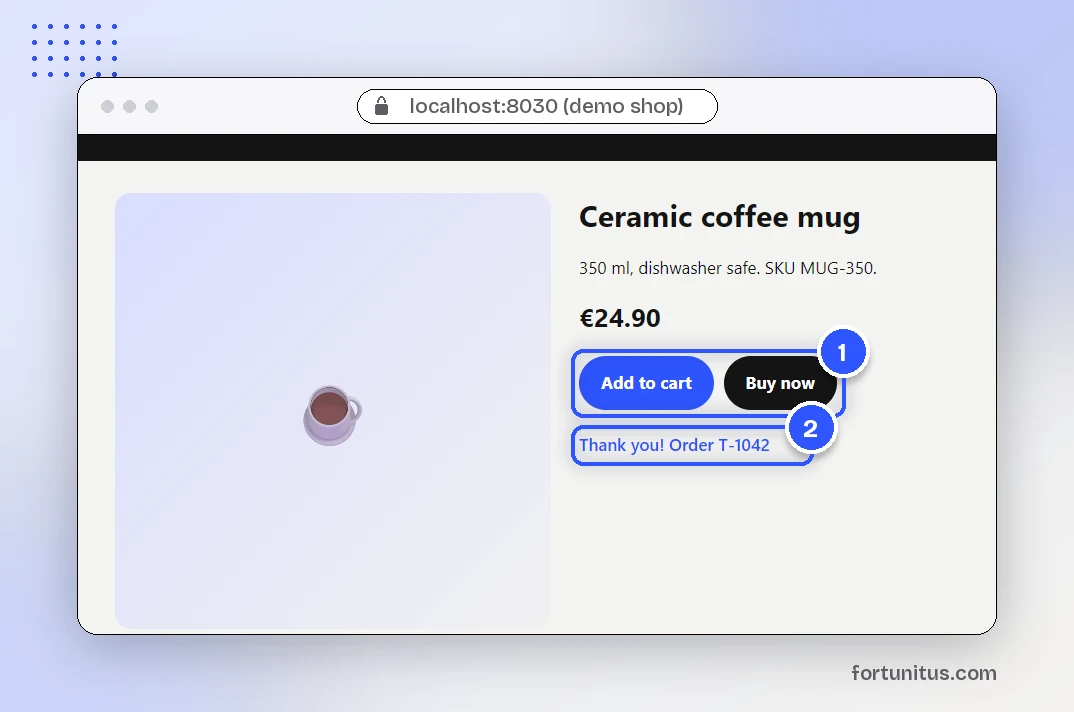
To show this with real screens rather than drawings, we built a small demo shop with its own Tag Manager container and its own GA4 property, so the test orders do not mix with any real data. Here is the product page after clicking Add to cart and Buy now:
Step 1: the website pushes the purchase
When the order is confirmed, the website runs this code. In a real shop the values come from the order, here they are written out:
dataLayer.push({ ecommerce: null });  // clear the previous ecommerce object
dataLayer.push({
  event: 'purchase',
  ecommerce: {
    transaction_id: 'T-1042',
    currency: 'EUR',
    value: 24.90,
    tax: 4.32,
    shipping: 0,
    items: [{
      item_id: 'MUG-350',
      item_name: 'Ceramic coffee mug',
      item_category: 'Kitchen',
      price: 24.90,
      quantity: 1
    }]
  }
});
Three details matter:
- The event name (
event: 'purchase') is what Tag Manager reacts to. Without it, the values are stored but no trigger fires. - Clearing
ecommercefirst is what Google's ecommerce guide does in every example. Otherwise values from an earlier step, such as the cart, can leak into the purchase. - Numbers are numbers.
24.90, not'24,90'with a comma. Text values with commas are a common reason purchases arrive without revenue.
Step 2: see it in Tag Assistant
Connect Tag Assistant to the site, make the purchase, click the purchase event on the left and open the Data Layer tab. You see exactly what the website wrote:

If something is missing here, the problem is on the website, not in Tag Manager. Send this screenshot to whoever built the shop.
Step 3: Data Layer Variables read the values
A Data Layer Variable is a Tag Manager variable that reads one key from the data layer. The name is the path to the value, with dots between levels: ecommerce.value, ecommerce.currency, ecommerce.transaction_id.
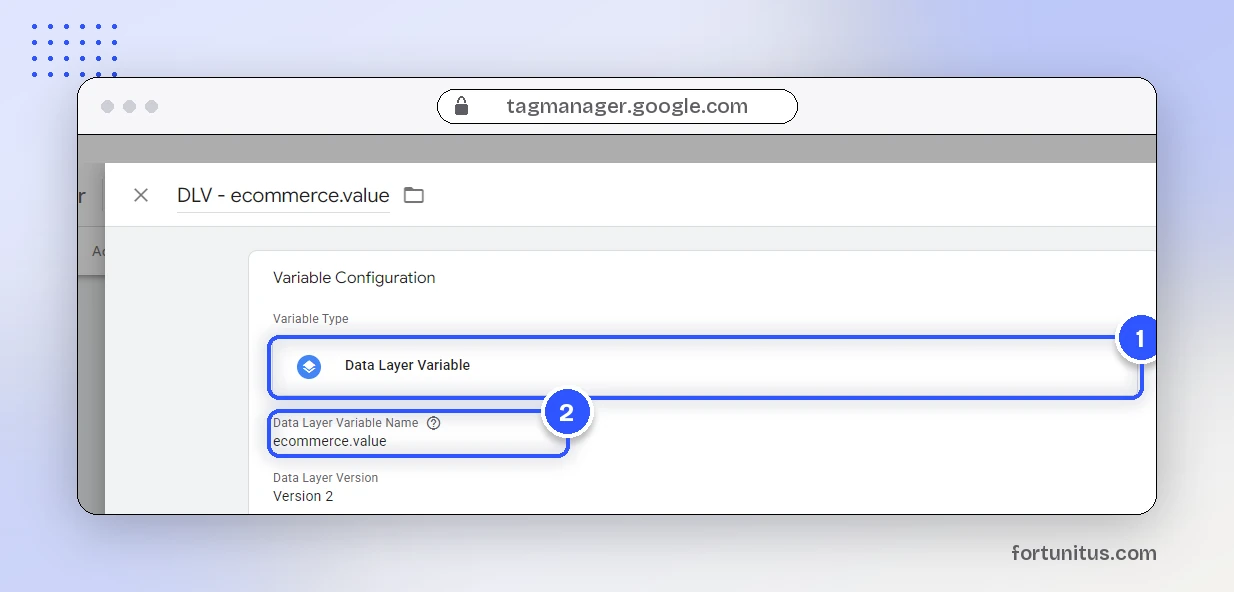
To create one: Variables → New → Variable Configuration → Data Layer Variable, type the path, keep Version 2 and save. The Variables tab in Tag Assistant then shows what each variable read on every event:

A variable that shows undefined means the path is wrong (a typo, or a missing ecommerce. in front) or the website did not send that key.
Step 4: the tag sends it
For GA4 ecommerce you do not need to map every field by hand. In the GA4 event tag, set the event name to purchase, open More settings → Ecommerce, tick Send Ecommerce data and choose Data Layer as the source. Fire it with a Custom Event trigger on purchase:

And here is the result a minute later in the demo property's Realtime report:

Common data layer mistakes
| Mistake | What happens | Fix |
|---|---|---|
No event key in the push | Values are stored, but no trigger fires | Always push an event name with the data |
Price as text with a comma, '24,90' | Revenue missing or wrong in GA4 and ad platforms | Send a number with a dot: 24.90 |
Not clearing ecommerce between steps | Products from the cart appear in the purchase | Push {ecommerce: null} before each ecommerce event |
dataLayer = [...] instead of dataLayer.push() | Overwrites the list and breaks Tag Manager | Create it with window.dataLayer = window.dataLayer || [], then only push |
| Purchase pushed on every visit to the thank-you page | Duplicate purchases when the page is refreshed | Push once per order and always send transaction_id |
| Wrong variable path | Variable shows undefined | Copy the exact path from the Data Layer tab |
Shopify, WooCommerce and other platforms
You rarely write the purchase push yourself on a shop platform. WooCommerce plugins such as GTM4WP and Shopify's customer events can generate the GA4 ecommerce data layer for you. The checks in this guide stay the same: open Tag Assistant, buy something cheap or use a test order, and look at the Data Layer tab. If the structure matches the example above, Tag Manager can use it.
The free tracking checker shows which GA4, GTM, Google Ads, Meta and cookie banner tags your site loads and what is inside your GTM container.
Run the checker